
Design the Job

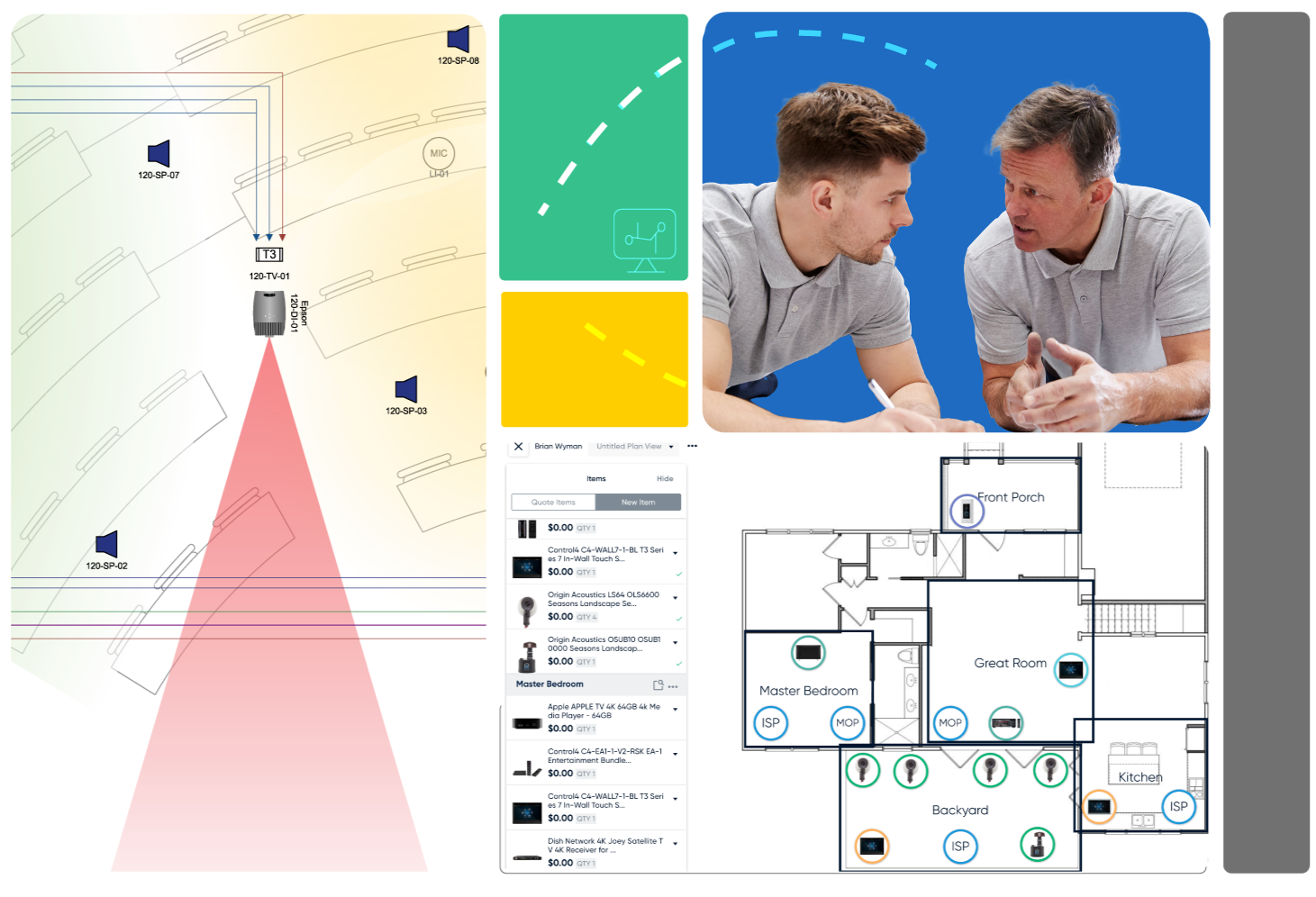
D-Tools System Integrator allows you to create detailed designs by leveraging the industry standards for drawing tools: Microsoft Visio and AutoDesk AutoCAD. Because everything in System Integrator is data-driven, you can quickly and easily generate detailed Line, Plan, Elevation, and Schematic drawings by simply dragging and dropping products from your project file to your drawing surface to create your drawings.

It is very easy to create drawings using Microsoft Visio, which is fully integrated and part of System Integrator Pro. You can also generate drawings with AutoCAD (which must be purchased separately). D-Tools generates 4 types of engineering drawings: Line Diagrams, Plan Views, Elevations, and Schematics.


All of the products that are included in your project can now be used to generate the drawings. D-Tools has an extensive library of Visio AV Shapes and AutoCAD Blocks which can be used to build drawings that are dimensionally correct and help communicate to the customer how the installed system will look in the intended environment. For example, elevation shapes scale based on the height and width entries and schematic shapes populate with I/Os, for wiring.

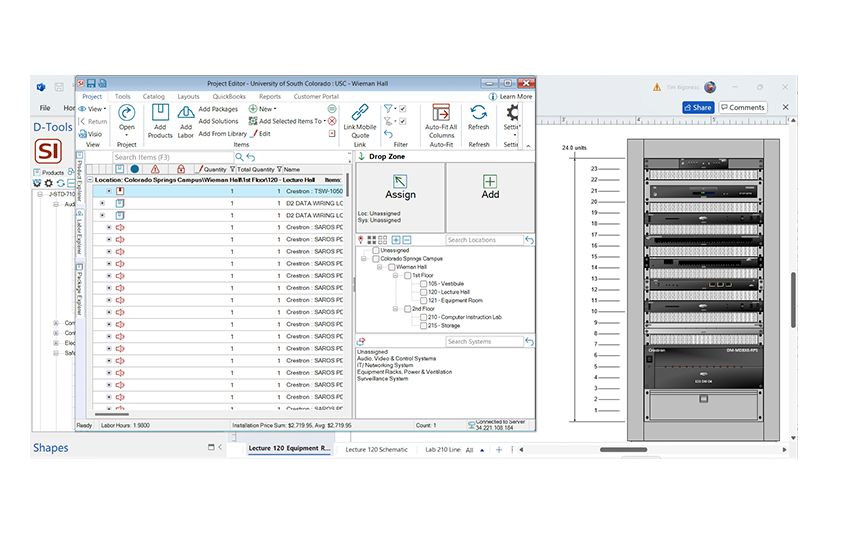
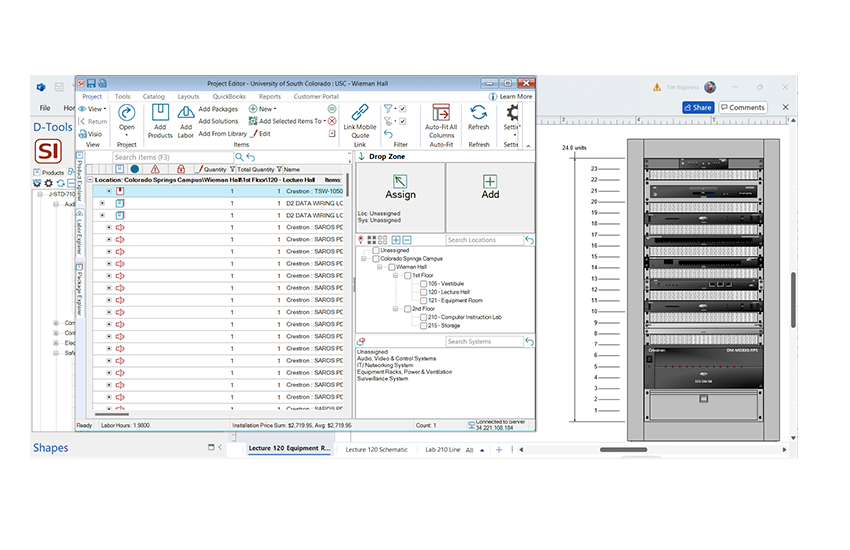
To create a drawing in Visio, it is as simple as dragging and dropping a product from the product data matrix over to the Visio drawing surface.

The Product DataMatrix is on the left hand side of the screen and lists all of the products already added to your project. If you are missing anything you can add new products to the project directly from the Visio interface - in fact you can create the entire project from the drawings if you like.

Design the Job – Line Diagram


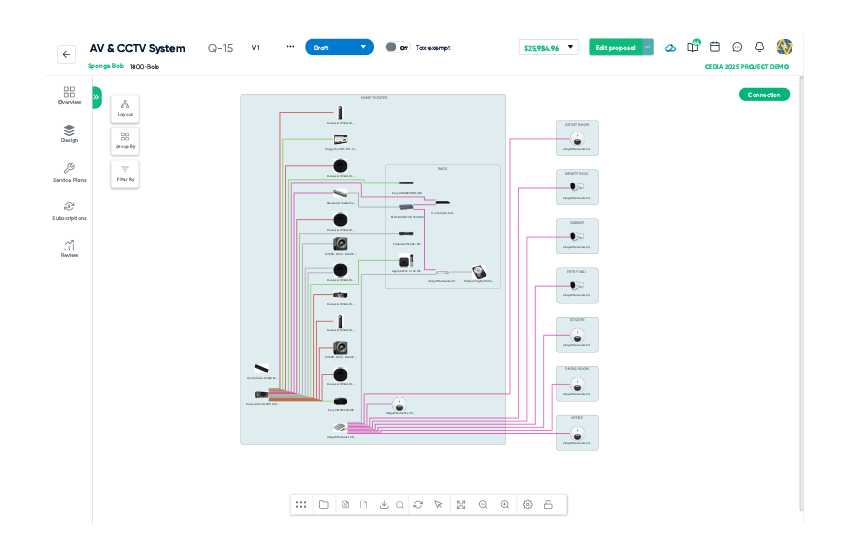
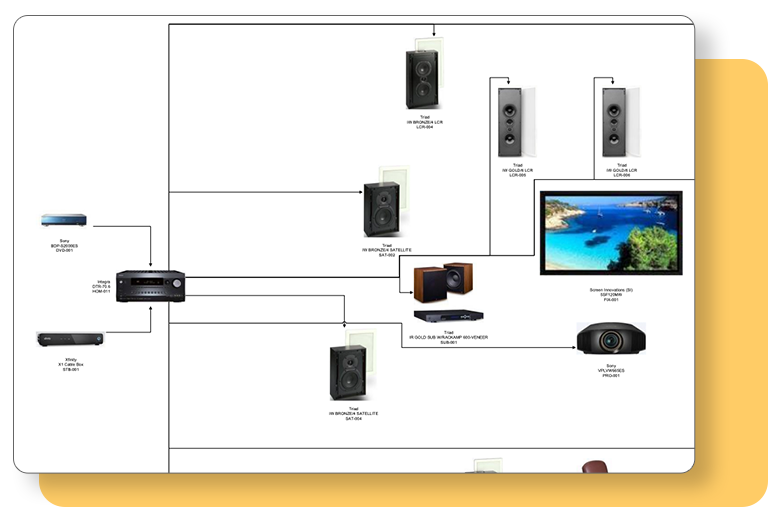
A Line diagram is a simple drawing that designates signal flow. Many products that are available via D-Tools manufacturer database have jpg images associated with them that can be used for line diagrams. You can also add your own .jpg images to your database. To create the Line Diagram simply drag and drop products to the drawing surface. Lines can be added to illustrate signal flow and all of the images on the page can be moved and re-sized to create the drawing.

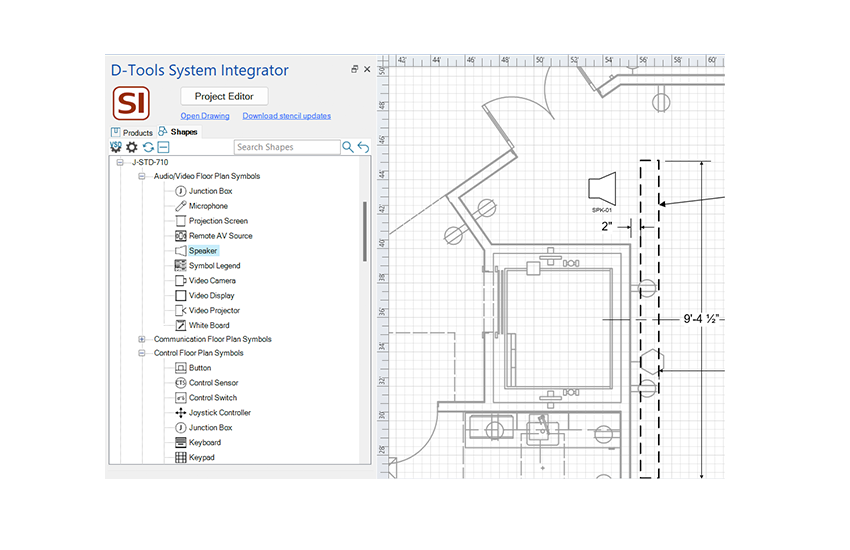
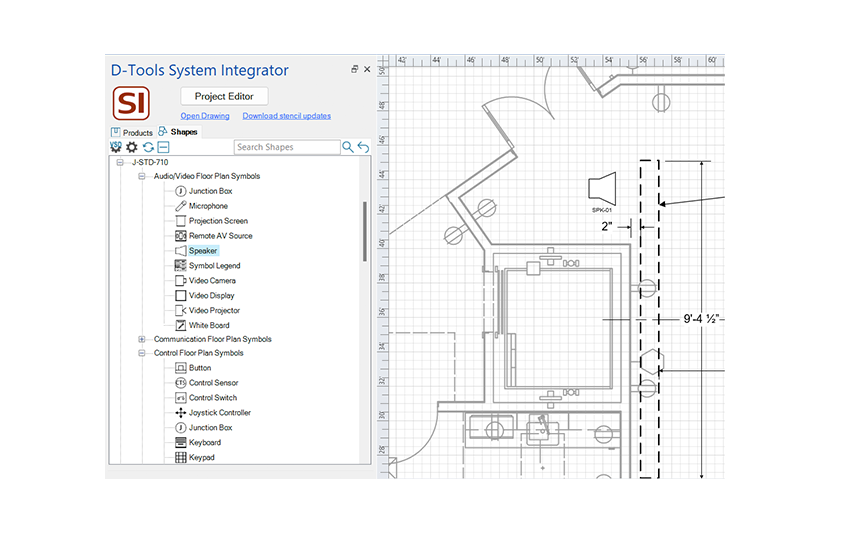
Design the Job – Plan View


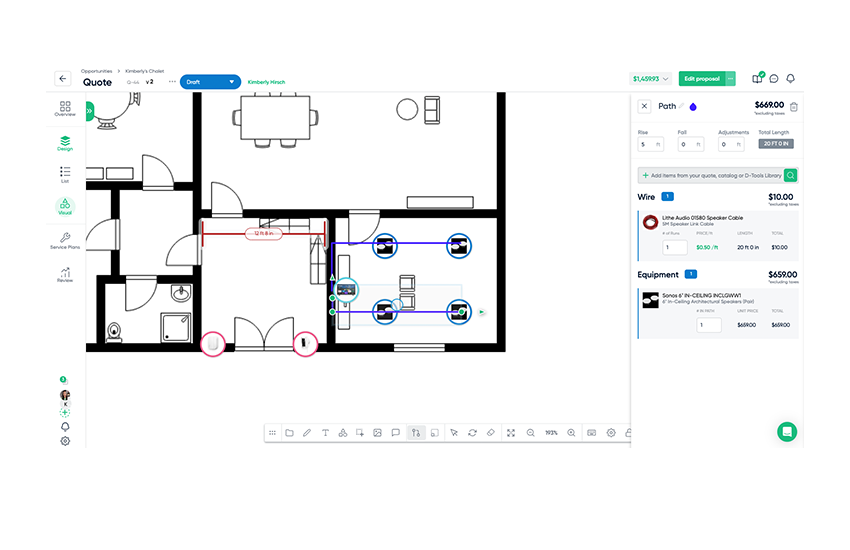
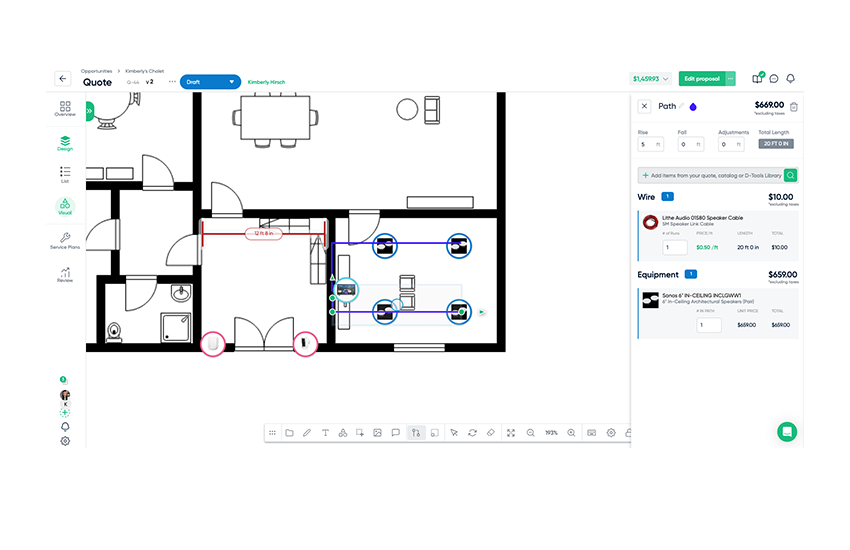
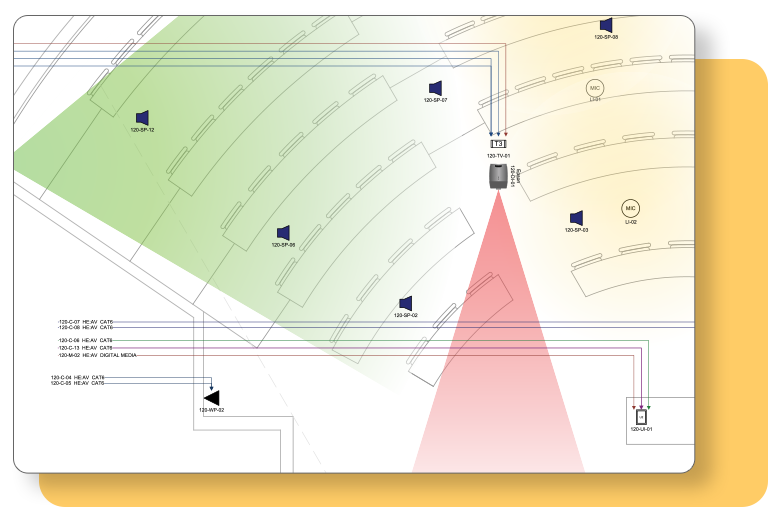
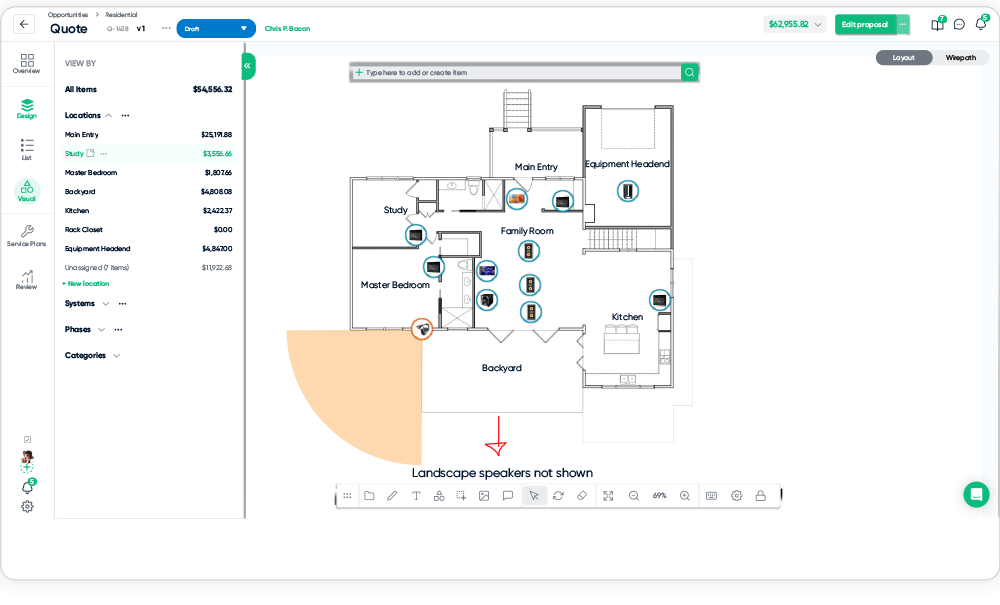
To create the Plan view is much the same as the Line Diagram. Simply drag and drop products from the System Integrator Product Data matrix over to the drawing surface. You can import AutoCAD files into Visio and layer your equipment over the plan view, or you can create your Plan drawing natively in AutoCAD.


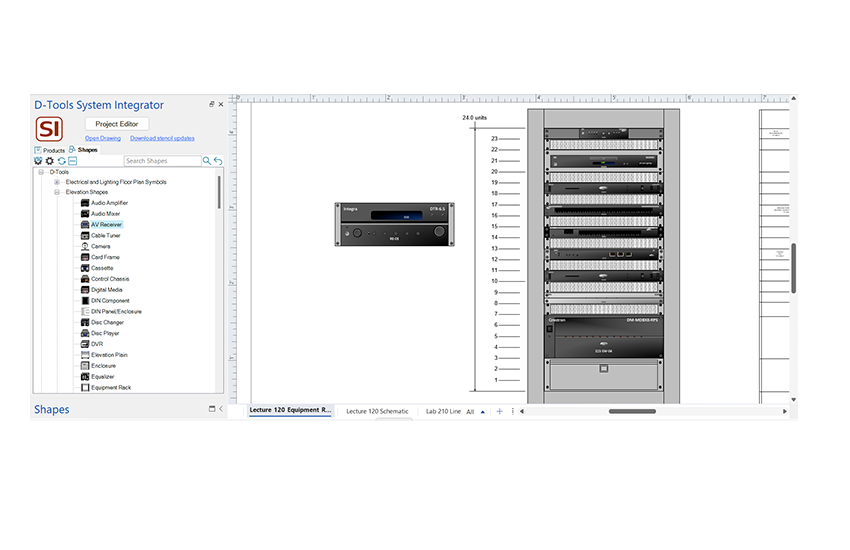
Design the Job – Elevation View

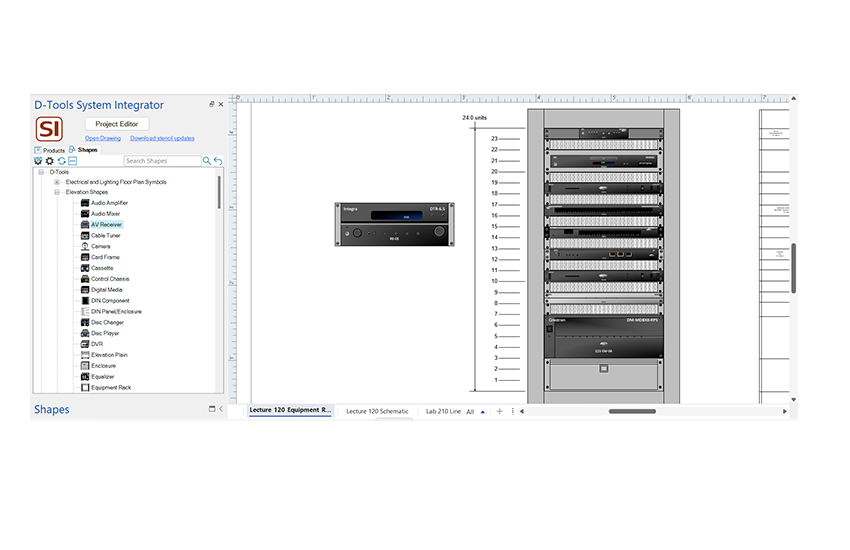
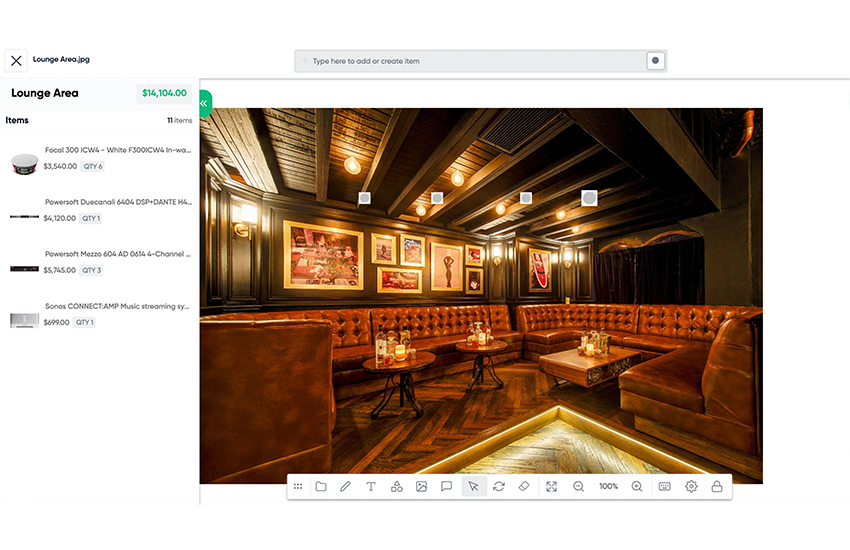
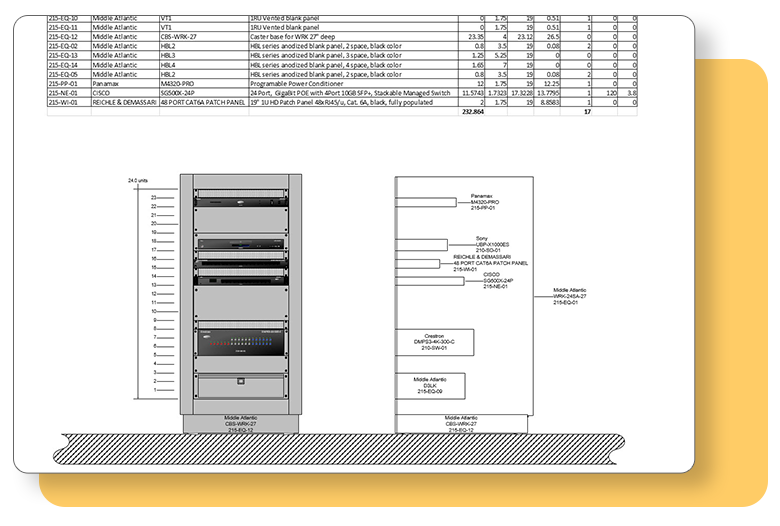
The Elevation view allows you to show your customers what the finished system will look like from a point of view perspective. It is particularly useful for showcasing higher-end systems with custom cabinetry, or communicating how the system will fit into a particular room.


The Elevation view is a visual tool that can be used as a virtual showroom, and in particular, can be a very effective closing tool for a highly competitive bid.

To create the Elevation view, you will simply drag the products from the System Integrator Product Data Matrix (PDM) and drop them onto the drawing surface in either Visio or AutoCAD. You will notice that the shapes are represented differently than the Plan or Line diagrams. The data is the same but the shape is now an elevation shape.

This will show the customer from a front view what the system will look like. The Elevation view also helps you as a designer ensure that you have the correct rack and component sizes and helps you eliminate any potential problems pre-installation. You will see that rack mounted products snap right into the equipment rack, allowing you to see remaining available spaces in case you need to add additional components.


Design the Job – Schematic View

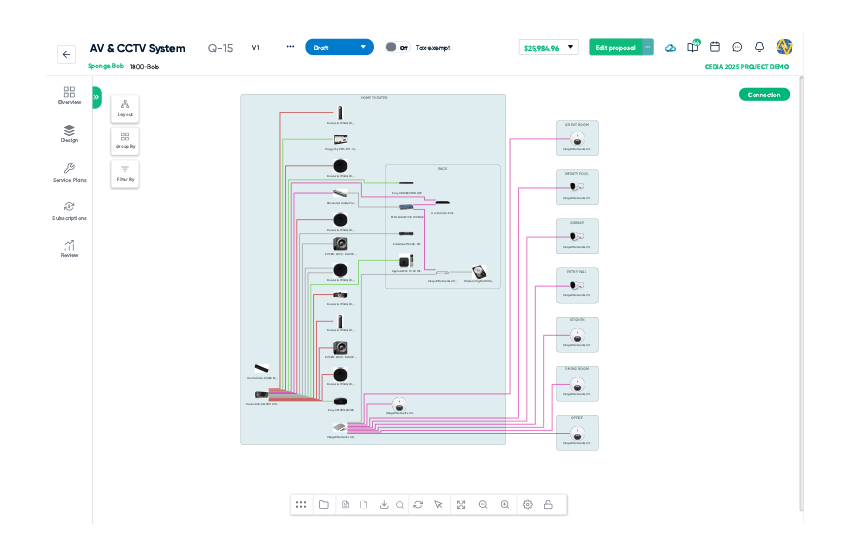
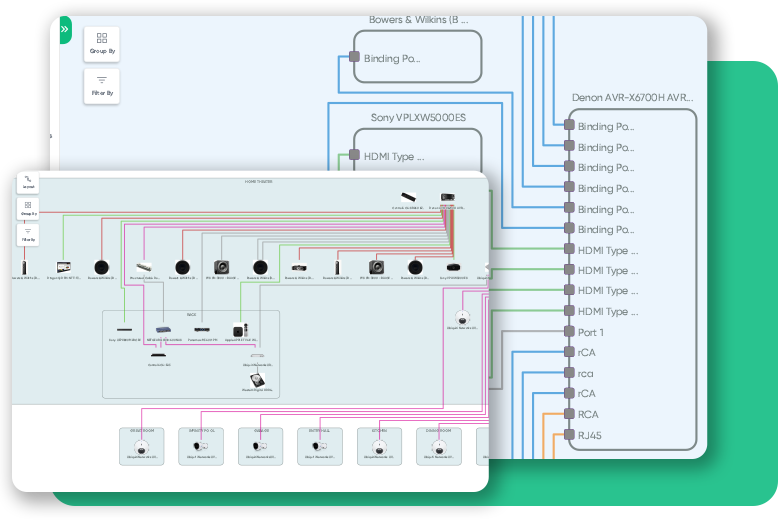
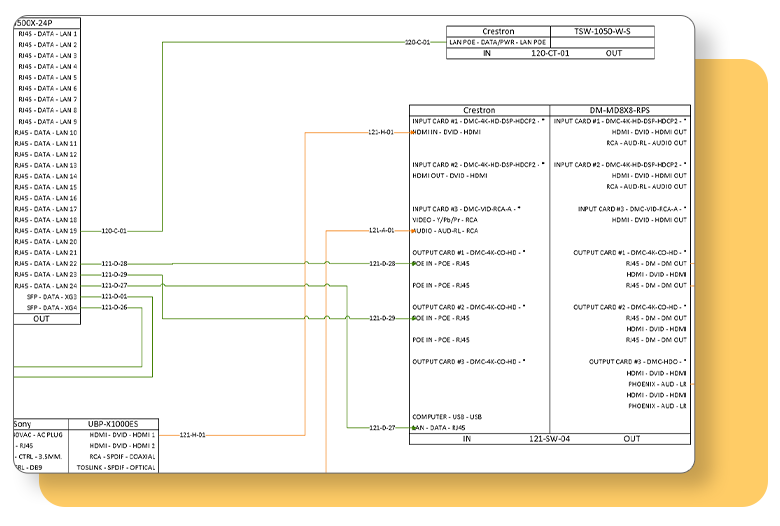
The Schematic drawing will show the connections between the components. The schematic is what becomes the engineered system, and allows you to virtually “hook up” the system before you even order any actual product. This is the drawing that the installers will use to ensure that all the components are correctly connected, and gives the customer confidence that the system will work as promised.


To create the Schematic view, you will simply drag the products from the System Integrator Product DataMatrix (PDM) and drop them onto the drawing surface in either Visio or AutoCAD. You will notice that now the products are represented as schematic shapes with inputs and outputs. This is what we will use to “hook up” the system. As you drag other components such as speakers and wires over to the drawing, you can now begin to make connections. Once you connect a wire from a component and to another component, this creates a connection in System Integrator, which will be used for installation reports, wire checklists, and can even print out correct wire labels. Once the connections are made, the project scheduling, resource management, and reporting features in SI5.5 can be utilized to help deliver the job.